
People looking for a plumber, roofer or electrician may search Google for a trade and a town, then compare map results before calling. Your Google Business Profile is the listing that can show your services, contact details, hours, photos and reviews on Search and Maps.
A complete, accurate profile helps customers decide whether to contact you, but it cannot guarantee a call or search position. Google says local visibility depends on relevance, distance and prominence. Here is what you can control.
What a Google Business Profile does
Think of it as your real business listing, not another social page. Customers can check your services, area, photos and reviews before choosing whether to call.
You do not need a shopfront if you meet customers in person at their location. Check Google’s eligibility and setup guidance before you start.
Claim and verify the right profile
Sign in with a Google Account you or your business controls. Search your business name and town on Google and Maps. If a listing exists, claim it or request access rather than making a duplicate; Google recommends one profile per business in its business guidelines.
If there is no listing, add the business. Use the name shown on your van, invoices or signage; do not add search phrases such as “best electrician in Leeds” unless they are part of the real business name.
Google chooses the verification method or methods for your profile. They vary by business type, public information, region and hours, and some profiles need more than one. Follow the steps shown and check Google’s verification instructions. Screens and menu names can change, so use the current prompts rather than an old walkthrough.
Choose a useful category, service area and hours
Choose the category that best describes the main service customers hire you for. Add only a few extra categories for genuine services; Google recommends the fewest needed to describe your core business.
If you travel to customers and they do not visit your address, set up as a service-area business. If Google asks for your real address during setup, you can hide it from the public profile and show the areas you serve instead—important if you work from home. See Google’s address guidance and service-area instructions.
Do not list every town you have ever driven through. Choose the nearby towns, postcodes or areas where you regularly take work. If customers can visit a genuine staffed shopfront as well as book home visits, check Google’s rules for a hybrid business before showing a public address.
Set hours that tell customers when they can realistically reach you or arrange work. If you answer calls between 8am and 5pm, use those hours rather than implying you are available all night. Update holiday hours or planned closures so people are not left calling a number that will not be answered.
Your description should say what you do, where you work and who you work for. Keep it factual, and use only services or qualifications that apply to you. For example:
- Electrician: “Local electrician covering [town] and [nearby areas]. I take on [fault finding, lighting and rewires] for [homeowners and landlords]. Call [number] to check availability.”
- Landscaper: “I’m a landscaper based in [town], working across [areas]. I handle [fencing, paving and garden clearances] and provide quotes for jobs of all sizes. Contact [business name] on [number].”
Replace each bracket with details you can stand behind. A clear, honest description is more useful than a string of search terms.
Add finished-job photos and useful updates
Once the profile is verified, add real photos of your work. A few clear pictures of a finished bathroom, repaired roof or tidy garden tell a customer more than a generic stock image. Google’s photo guidance recommends images that are well lit, in focus and not heavily altered.
Take photos from a couple of useful angles and, where it helps, include a before-and-after pair. Ask permission before showing a customer’s property, and check the frame for house numbers, faces, vehicle plates or paperwork you should not share. For practical photo ideas, see how to post job photos without looking unprofessional.
You can also publish an occasional Google profile update: a recent job, a seasonal service, a change to availability or another useful notice. Google says these updates can appear on Search and Maps; they are there to inform customers, not to promise a higher ranking. Its guide to Business Profile posts explains the current options.
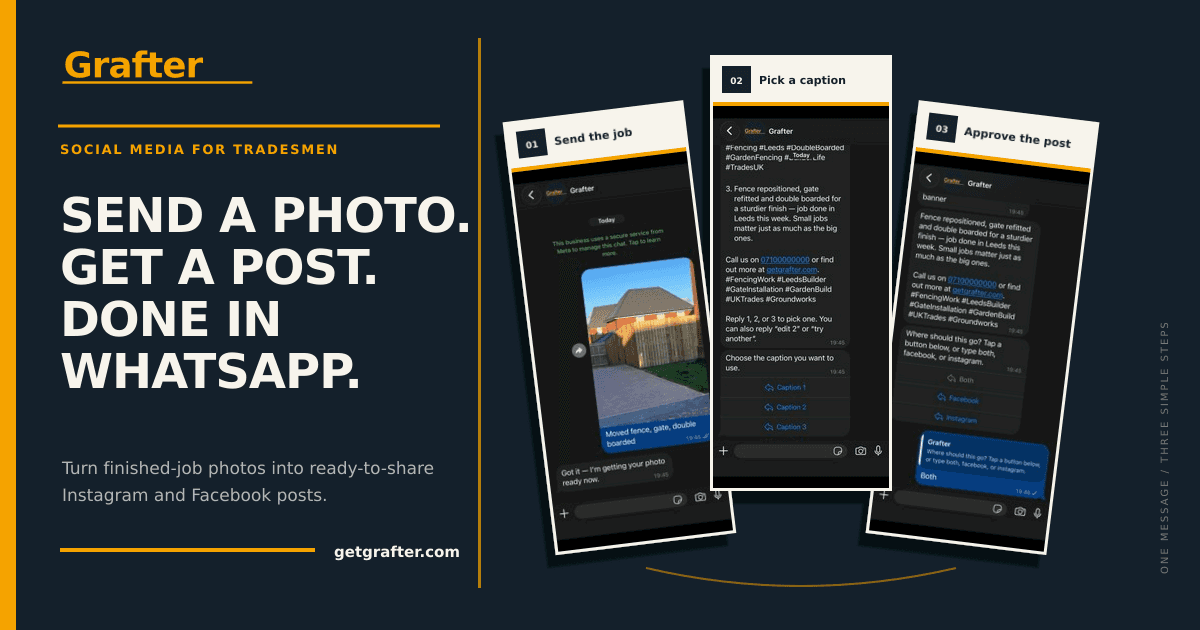
The same finished-job photos can also go on Facebook and Instagram. Grafter can turn a job photo and a sentence into caption options for those two platforms, but it does not manage Google Business Profile; you still add photos and updates to Google yourself. If you need more ideas for social posts, see what tradespeople can post on social media.
Ask for honest reviews and reply
After a job, ask the customer for an honest review if they are willing. Google lets you share a review link or QR code. Keep it neutral: “If you’re happy to share an honest review, here’s my Google link.” Never offer a reward for a review, or for changing or removing one. Google’s review guidance requires genuine experiences and prohibits incentives.
Reply calmly and personally. Do not share customer details or argue in public; invite the reviewer to contact you directly if a complaint needs a proper conversation.
Positive review reply: “Thanks for taking the time to leave a review, [name]. I’m glad you’re pleased with the new [work]. Thanks for choosing [business name].”
Critical review reply: “Thanks for raising this. I’d like to understand what happened and see how we can put it right. Please contact me on [number] so we can discuss it directly.”
Common mistakes to avoid
- Choosing the wrong category: pick the closest match for your main trade, not the category with the broadest reach.
- Showing a home address by mistake: hide it if customers do not visit you there.
- Listing areas you do not serve: keep your service area accurate and realistic.
- Using different details in different places: keep your business name and contact details consistent.
- Leaving the profile bare: add genuine photos, accurate hours and a clear description.
- Ignoring reviews: check for new feedback and respond without sharing personal information.
- Creating a second profile for the same business: claim the existing listing instead.
A 20-minute setup checklist
Set aside about 20 minutes to get the basics in place. Google’s verification process may take longer, and the time depends on the option shown for your profile.
- 3 minutes: Search your business name on Google and Maps. Claim the existing profile or start a new one.
- 4 minutes: Confirm the real business name, main category, phone number and website if you have one.
- 3 minutes: Add the hours when customers can reach you, including any regular closed days.
- 3 minutes: Choose a service area. If customers do not visit your home, hide the address from public view.
- 3 minutes: Write a plain description using the examples above as a starting point.
- 3 minutes: Add a small set of clear, genuine job photos.
- 1 minute: Start the verification process and save the review link for later.
The five-minute weekly routine
Once a week, take five minutes to keep the listing current:
- One minute: Check the phone number, hours and service areas.
- One minute: Read new reviews and reply to anything waiting.
- Two minutes: Add a recent finished-job photo, with the customer’s permission.
- One minute: Post a useful update if you have something timely to share.
The aim is not to post for the sake of it. Keep the information accurate, show real work and make it easy for a nearby customer to understand what you do. For a simple routine across your other channels, read our weekly social media routine for tradespeople or how social media can help you get more building jobs.
Google Business Profile is yours to manage; Grafter does not manage it. If you want help turning finished-job photos into Facebook and Instagram posts, Try 5 posts free.